Showing posts with label howto. Show all posts
Showing posts with label howto. Show all posts
Tuesday, February 17, 2015
HowTo Install Epson L110 in Fedora
Step 1: download Epson L110 driver on Epsons official website (you need to press the accept button to see all available files) http://download.ebz.epson.net/dsc/du/02/DriverDownloadInfo.do?LG2=EN&CN2=SG&CTI=4&PRN=L350%20Series&OSC=LX
Step 2: select your system architechture (download only .rpm files)
Step 3: open your terminal
Step 4: su -
Step 5: cd Downloads (or wherever you placed your downloaded files)
Step 6: yum localinstall your-downloaded-file.rpm
(ex. yum localinstall epson-inkjet-printer-201207w-1.0.0-1lsb3.2.x86_64.rpm)
Step 7: tada! your Epson Printer Driver is now installed! You can now see the Epson L110 driver when you are installing your printer!
** Notes **
You need to install the driver for the printer to work properly, before I used Epson NX100 driver on an Epson L100 printer and it works fine, if you used the same driver on the L110, when you are printing a document, it will simply feed and eject your paper for many many times, maybe infinite!
If somehow you cannot download from the link above, leave a comment and your email and ill email to you a copy of the files, both i486 and x86_64
Read more »
Step 2: select your system architechture (download only .rpm files)
Step 3: open your terminal
Step 4: su -
Step 5: cd Downloads (or wherever you placed your downloaded files)
Step 6: yum localinstall your-downloaded-file.rpm
(ex. yum localinstall epson-inkjet-printer-201207w-1.0.0-1lsb3.2.x86_64.rpm)
Step 7: tada! your Epson Printer Driver is now installed! You can now see the Epson L110 driver when you are installing your printer!
** Notes **
You need to install the driver for the printer to work properly, before I used Epson NX100 driver on an Epson L100 printer and it works fine, if you used the same driver on the L110, when you are printing a document, it will simply feed and eject your paper for many many times, maybe infinite!
If somehow you cannot download from the link above, leave a comment and your email and ill email to you a copy of the files, both i486 and x86_64

Sunday, February 15, 2015
HowTo fix linux cp always ask for overwrite
Do you want to remove the overwrite feature of cp? use the command below when coping files.
cp -Rf filetocopy.txt destination.txt
** simply add a slash at the front of the cp command because cp is aliased by default to cp -i **
Read more »
cp -Rf filetocopy.txt destination.txt
** simply add a slash at the front of the cp command because cp is aliased by default to cp -i **
Friday, February 13, 2015
HowTo Install VirtualBox on Fedora 18 x64
Step1:
- download VirtualBox 4.2.6 for Linux hosts and VirtualBox 4.2.6 Oracle VM VirtualBox Extension Pack on this website https://www.virtualbox.org/wiki/Downloads
- choose the AMD64 architecture for Fedora 18 ("Spherical Cow")
Step2:
- open terminal and type the following
su -
yum update -y
reboot
**your computer will reboot
Step3:
su -
yum install -y dkms gcc
cd /home/**user**/Downloads
yum install -y VirtualBox-4.2-4.2.6_82870_fedora18-1.x86_64.rpm
/etc/init.d/vboxdrv setup
usermod -a -G vboxusers administrator
Step4:
- open a new terminal and type the following
VirtualBox
Step5:
- the Oracle VM VirtualBox Manager will pop-up
- click File->Preferences
- select Extensions
- press the add package button
- find and select Oracle_VM_VirtualBox_Extension_Pack-4.2.6-82870.vbox-extpack
- press Install
- read and understand the VirtualBox licence (click and drag the scrollbar up to the bottom to activate the "I Agree" button)
- supply your root password
- your done!
Read more »
- download VirtualBox 4.2.6 for Linux hosts and VirtualBox 4.2.6 Oracle VM VirtualBox Extension Pack on this website https://www.virtualbox.org/wiki/Downloads
- choose the AMD64 architecture for Fedora 18 ("Spherical Cow")
Step2:
- open terminal and type the following
su -
yum update -y
reboot
**your computer will reboot
Step3:
su -
yum install -y dkms gcc
cd /home/**user**/Downloads
yum install -y VirtualBox-4.2-4.2.6_82870_fedora18-1.x86_64.rpm
/etc/init.d/vboxdrv setup
usermod -a -G vboxusers administrator
Step4:
- open a new terminal and type the following
VirtualBox
Step5:
- the Oracle VM VirtualBox Manager will pop-up
- click File->Preferences
- select Extensions
- press the add package button
- find and select Oracle_VM_VirtualBox_Extension_Pack-4.2.6-82870.vbox-extpack
- press Install
- read and understand the VirtualBox licence (click and drag the scrollbar up to the bottom to activate the "I Agree" button)
- supply your root password
- your done!
HowTo Play sounds in ActivePerl using Win32 Sounds
Playing of sounds using Win32::Sound requires that you play the sound while the perl script is still running.
If the perl script terminates, the playing of sound also terminates.
The sound plays in this example because we are inside the Gtk2 main loop, the script does not terminate instantly because we are waiting for user inputs.
Please take note of the difference between the 2 buttons, SND_ASYNC allows the Gtk2 to loop without waiting for the sound to finish playing.
On the other hand, the one without the SND_ASYNC does not allow the Gtk2 loop to proceed until the sound has finished playing.
#!/usr/bin/perl -w
If the perl script terminates, the playing of sound also terminates.
The sound plays in this example because we are inside the Gtk2 main loop, the script does not terminate instantly because we are waiting for user inputs.
Please take note of the difference between the 2 buttons, SND_ASYNC allows the Gtk2 to loop without waiting for the sound to finish playing.
On the other hand, the one without the SND_ASYNC does not allow the Gtk2 loop to proceed until the sound has finished playing.
#!/usr/bin/perl -w
use strict;
use Gtk2 -init;
use Win32::Sound;
my $window = Gtk2::Window->new();
$window->signal_connect(destroy=>sub{ Gtk2->main_quit();});
my $vbox = Gtk2::VBox->new();
$window->add($vbox);
my $b1 = Gtk2::Button->new("NON BLOCKING");
$b1->signal_connect(clicked=>sub{
Win32::Sound::Play(SystemExclamation,SND_ASYNC);
# Win32::Sound::Play(c:\foobaring.wav,SND_ASYNC);
# you can also use the code above to play your own wav files
});
$vbox->pack_start($b1,0,0,0);
my $b2 = Gtk2::Button->new("BLOCKING");
$b2->signal_connect(clicked=>sub{
Win32::Sound::Play(SystemExclamation);
# Win32::Sound::Play(c:\foobaring.wav);
# you can also use the code above to play your own wav files
});
$vbox->pack_start($b2,0,0,0);
$window->show_all();
Gtk2->main();
Tuesday, February 10, 2015
HowTo Install Gtk2 in ActivePerl in Windows 7
This was tested in the ActivePerl 5.14.2 and 5.16.2
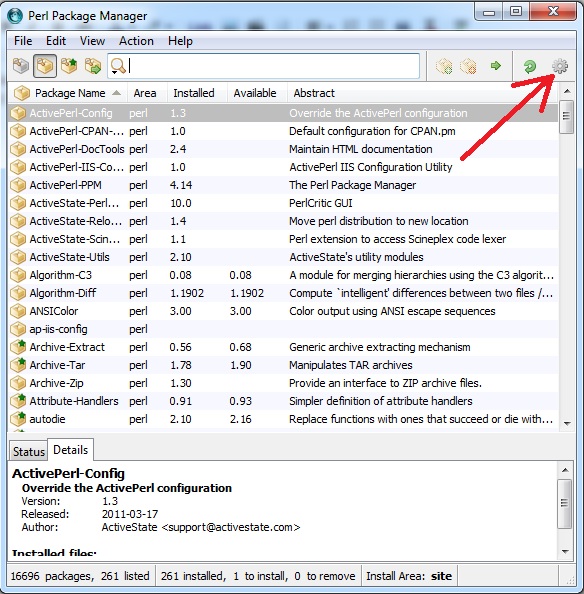
Step1: open Perl Package Manager
Step2: click on preferences (the gear thingy) on the upper right corner
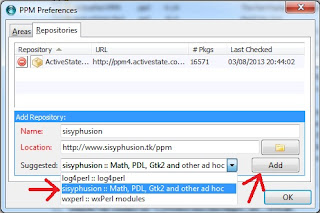
Step3: select the sisyphusion :: Math, PDL, Gtk2 and other ad hoc and press Add button then press OK
Name: sosyphusion
Location: http://www.sisyphusion.tk/ppm
Step4: follow the arrows from 1 to 5 in the diagram below
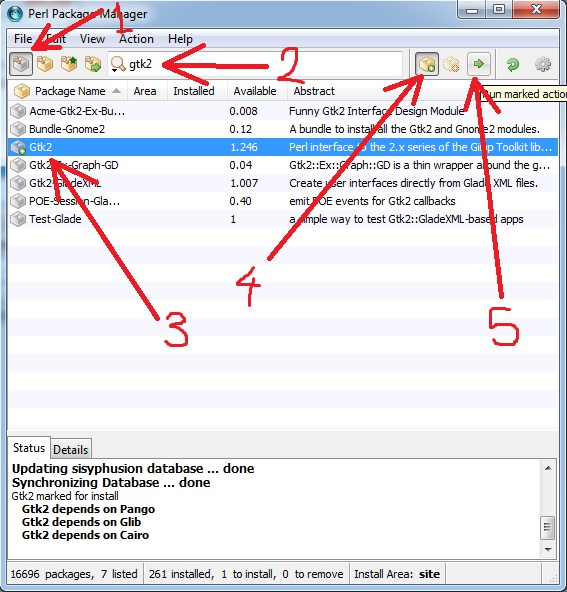
Step5: Gtk2 is now installed!!
Thanks to one of our Commentor, (AnonymousJuly 3, 2013 at 5:53 AM) suggested you do the following if your installation fails with this message "The package Gtk2 has already installed a file that package Pango wants to install."
Anyway, in order to successfully install it under (at least) ActiveState Perl 5.16.3 you need to :
Step 1 .. Step 3 : same as shown above
Step 4 : exit PPM GUI
Step 5 : on command line (cmd.exe) enter :
ppm install Gtk2 --force
Step 6 : enjoy !
Read more »
Step1: open Perl Package Manager
Step2: click on preferences (the gear thingy) on the upper right corner
Name: sosyphusion
Location: http://www.sisyphusion.tk/ppm
Step4: follow the arrows from 1 to 5 in the diagram below
Step5: Gtk2 is now installed!!
Thanks to one of our Commentor, (AnonymousJuly 3, 2013 at 5:53 AM) suggested you do the following if your installation fails with this message "The package Gtk2 has already installed a file that package Pango wants to install."
Anyway, in order to successfully install it under (at least) ActiveState Perl 5.16.3 you need to :
Step 1 .. Step 3 : same as shown above
Step 4 : exit PPM GUI
Step 5 : on command line (cmd.exe) enter :
ppm install Gtk2 --force
Step 6 : enjoy !
** I tried this and it works like a charm ** thanks anonymous
Subscribe to:
Posts (Atom)