Thursday, February 19, 2015
Installation of Pentaho 5 0 1 CE in windows 7 changes made from previous version
First of all, Id like to thank you to the web details team for the efforts they kept in bringing up the powerful analytical engine(BA server).
The home page itself make you to stick with BA server where you can enter into the server with "admin" and "password" as the default credentials.. Yes, "joe" user is no more but he left with the same password to log into BA server.
There will be NO more admin console ... Now it is very easy and developer friendly to navigate in one console(User Console) to give data base connections and new roles for new users..
A lot of stuff included in the home page itself, giving the blogs links, books on different tools of pentaho family. In a single word I can say , All the stuff related to Pentaho at a single place. A BI developer like me can reduce the time for developing reports, dashboards , jobs.
Market place for installing C-Tools and the installed plug-ins list drop down is one of the good ideas of the team.
As quick as Pentaho released its CE 5.0.1 , I just downloaded and trying to explore the new look and navigating from all the menus, reports, connection places and etc.
Its very easy to install the pentaho CE BA now in windows...
Installation procedure :
1) Down load the software as a .zip file using this link .
2) Unzip it in your fav folder
3) Click on start-pantaho.bat file
Home page :
NOTE: path and class path for java must be set before the installation.

Saturday, February 14, 2015
HP Slate to run Palm WebOS instead of Windows 7

The latest Good E-Reader News has the HP Slate quite possibly be running the Palm Web OS, after its acquisition of Palm for 1.2 Billion Dollars.
On Wednesday April 28th after the stock markets closed HP bought Palm which many people say is a buyout for the Palm OS. The HP Slate which has been a letdown from a hands on experience by a few tech analysts have said Windows 7 simply isn’t optimized for a “slate/tablet” style device, thought it suits netbooks and laptops just fine. After a recent hands on, with the HP Slate, many analysts are saying that Windows 7 is not the route to go for HPS success into the Slate PC market.
Most of the Higher profile Slate PC’s such as Dell, Notion Ink, Neofonie, and others have gone the Google Android route as their operating system of choice for the next generation of Slate PCS. HP was the lone company to be developing a Slate PC that functioned on the Windows 7 operating system.
HP and Palm are the perfect pairing for Slate PC computing. Palm uses its well designed iPAQ hardware to run the Palm OS, and for a change gets a competitive smart phone. The Pre and the Pixi either get re-engineered by HP into something more useful, or they fade away. Meanwhile, HP’s tablet gets an OS suitable for a portable device. Not only does HP get a great operating system that is very unique for its Slate device, it also gets around 2000 third party applications for its device in one day.
HP has long been saying it will use software to differentiate its products. Now it actually can. Owning and controlling its own OS has many benefits, starting with being able to dictate who can make applications, when the product is updated, and ensuring that the hardware and software work together as seamlessly as possible. Going with the proprietary OS will shield it from potential lawsuits or necessary licensing deals with Apple or Microsoft.
HP’s acquisition of Palm means the mobile wars extend to slate tablets: iPhone vs. Android vs. Palm, all over again.
But this acquisition isn’t strictly about phones. This is about HP’s future mobile OS. Bradley said several times HP will “invest heavily” in WebOS, and use it on slate PCs, Netbooks, and phones. HP was not ready to talk about possible time lines as to when a WebOS slate or WebOS Netbooks would be available, but said it planned to increase the $190 million Palm was spending annually on research and development.
HP has made some quasi-ok Smartphone’s in the past, but they have been based on Windows Mobile and unless HP is moving to Windows Phone 7 that line is dead in the water. HP still does have a couple of Windows Mobile Smartphone’s that are pretty decent, in terms of hardware.
With this purchase, lots of research and development will now go into the WebOS and it looks like the HP Slate will be running this operating system, has it gives them the distinction they need to be competitive in the Slate PC market, and gives them a large developer community in which to add applications.
For more breaking news on the HP Slate, subscribe to our Good E-Reader Magazine.
http://goodereader.com/blog/tablet-slates/hp-slate-to-run-palm-webos-instead-of-windows-7/
Thursday, February 12, 2015
KMSpico v9 0 5 20131110 RC Offline Activator for Windows and Office

KMSpico - is the ideal tool to activate the final version of Windows 7/8 and Office 2010/2013. Activator does not require user intervention, the entire activation process takes place in the background, just run the activator and a couple of minutes to check the activation status of Windows and/or Office.
Features:
Universal (Activates Windows Vista/7/8 Pro/(8.1 Preview)/Enterprise/N/VL and Office 2010/2013 Retail/VL.)
• Does not require user intervention (enough to run the activator).
• Simultaneous activation immediately and Windows, and Office.
KMSpico Can do:
1. Acivate Windows 8.1 ( Review )
2. Acivate Windows 8 ( any edition)
3. Acivate Widows 7 ( Any Edition )
4. Acivate Windows Vista ( Any Edition )
PC Requirements:
Requirements: .NET 4.0 or Windows 8.
Activates Windows Vista/7/8 and Office 2010/2013.
Windows Server 2008/2008R2/2012
How to use:
1. Install KMSpico v8.9 in Windows.
2. Run automatically KMSELDI and AutoPico.
2.1 Make Tokens Backup.
2.2 Detect VL or Retail and depending of the License Status activate or convert to VL.
2.3 Activate for 180 days all VL products found.
3. Install a windows service that reactive every windows start.
4. Create a task schedule for AutoPico to run every 24 hours.
Change Log:
- Fixed know bugs.
- Improve retail key finder in W8.1
For Windows 8.1 RTM It contains :
- Retail key finder over internet only windows keys.
- Check for valid keys for the local installation.
- Install the first key and show the Installation ID for later phone activation.
- Create a validKeys.txt file with the valid keys found in internet.

Want to install Mac OS or any other linux OS and still be able to run your windows applications Read this
Virtual Machines vs Parallel Installations
I spent the entire day today in the realm of proprietary software setting up my MacBook laptop to run Windows XP Professional via Bootcamp. Having now used Virtual Machines and Parallel/Dual-Boot installations on a couple of machines I wanted to take a few minutes to share my experiences and thoughts on the subject. For those of you not familiar with the concepts, Virtual Machines or vmware and parallel installations are two different methods of running multiple operating systems from a single computer. This can be done either on a desktop or on a laptop and has both open source or proprietary options.
The ultimate decision of which option to go with will depend greatly on the individual’s usage habits and preferences. In my case I’ve grown to appreciate the advantages offered by parallel installations over vmware.
VIRTU
Virtual machines, or vmware, are an innovation that enables you to run one operating system within another. This process relies on the presence of a vmware program, such as VMware Fusion for Mac, or VirtualBox for Linux, and creates an instance of a “guest” OS that can be booted from within the “host” OS.
In the case of both proprietary and open source options, you begin by first installing the virtual machine software. Once this has been done you create a new virtual machine within the Vmware program. The steps to add the guest OS will depend on the Vmware software, but generally speaking there will be a few steps involved in which you identify what the host machine will be (Linux, Mac, or Windows) and designate how much RAM you wish to make available.
Once this has been done the the bulk of the process is extremely similar to that of a standard installation on a brand-new machine..
When you want to login to the guest OS, it’s just a matter of loading the Vmware program and selecting the operating system from the list of available options.
Advantages: Virtual machines give you access to two operating systems at once, and therefore expand the available functionality you have access to. Often times software is not available for all platforms, so use of virtual machines would enable Mac Users to run Microsoft Outlook for example; or Linux users to run Adobe Photoshop, or RPG games.
Virtual machines can also be moved or deleted exceptionally quickly because from the perspective of the host machine they are just one large file. The Instance of Windows XP I had previously installed on my MacBook was a single 25 GB file for example.

VMware for evaluating new systems: One of the key benefits of virtual machines – which I continue to use – is as a quick way to evaluate new operating systems and Linux distributions. I am constantly tinkering and test driving new distributions in a never ending quest for new and interesting features. By installing new OS test beds as virtual machines I’m able to quickly and easily explore them without making any fundamental changes to my system.
If I decide I don’t like the OS, I can delete the virtual instance without any adverse impact to the host machine.
Disadvantages: Due to the nature of the technology, use of Vmware represents extra burdens on your system than exist normally because you are using the same limited resources to run two operating systems. As a result programs on the host machine will not run as quickly.
Drivers are another big issue – particularly for Linux/Windows installations. Many hardware manufacturers do not produce drivers that support Linux-based operating systems the open source community has had to develop them themselves. In some cases – particularly webcameras – drivers are still being developed; and the versions that are currently available require more advanced computer skills to get running.
In my case the expertise required to implement the drivers is above my skillset, so I’m not able to use my Logitech Webcamera while logged into Ubuntu.
In the context of the discussion on VMWare, guest machines get their drivers and hardware information from the host. So despite the fact drivers are widely available for Windows, if you’re running XP as a virtual machine within Ubuntu you’re not going to be able to use the webcamera. This isn’t the case with parallel installations because the extra layer of the host-guest relationship doesn’t exist.
PARALLEL INSTALLATIONS
With Parallel Installations or Dual-Booting, you are running two completely separate operating systems on one box. In this case when you first power-up the computer you are prompted to select which system you wish to log into. Once logged in you will only have access to the software components that you’ve installed on that specific OS, and not both (as is the case with virtual machines).
Historically setting up a dual-booting system has been fairly complicated – especially for new users. However increasingly software companies have begun to ease the process.
Mac’s new Leopard release for example (OS 10.5) comes with a utility known as Bootcamp, which vastly simplifies the set-up process for installing Windows machines in parallel. The set-up is largely wizard based and takes you through the process of re-partitioning the harddrive to make way for the new Windows instantiation, and then rebooting into the Windows install process.
Additionally Ubuntu has gone one step further by enabling insterested parties to test drive the OS without actually installing it, to install an instance within Windows, or dual-boot the machine.
Advantages: One of the main advantage of parallel installations is the fact you can dedicate 100% of your system resources to the host machine. As a result programs and the operating system in general run much more quickly.
Secondly, and equally importantly, is the fact that you don’t face the same driver issues in dual-booting that you do in vmware. For example, if Linux is your OS of choice you can use Ubuntu as your primary default OS, but revert to Windows XP for web conferencing. (That said there are of course existing open source options for Linux users; this option is just one possibility.)
Finally though perhaps trivially, you won’t face issues of keyboard shortcuts with nearly the same frequency as virtual machines.
Disadvantages: Unlike virtual machines which are housed within single large files within the host machines folder heirarchy, parallel installations require dedicated partitions to function. So the process of setting up a dual-boot machine requires additional steps that change the landscape of your harddrive rather than working within the pre-existing conditions.
These changes can be undone later to a degree; but re-partitioning of a harddrive is never to be taken lightly. So this factor should be borne in mind (e.g. back-up first!)
Secondly you are restricted to the software and functionality of one operating system at a time.
MY OPINION
Having used both options on a few different machines I personally prefer dual-boot systems over virtual machines for general usage (as I said there is just no beating vmware for testbed installations). While it is nice to have the ability to quickly access PC software from the Mac without having to do a full restart, I found it cognitively difficult to work between the two operating systems within one environment.
For one, while in XP the key-board shortcuts were a hybrid – not quite PC, and definitely not Mac. So I was constantly making mistakes when typing that resulted in a loss of efficiency over time. I’ve heard that you can remap keys; but to be honest I wasn’t in love with vmware enough to bother.
Having set-up the same laptop with XP dualbooting through Bootcamp on the other hand, I’m much more pleased with the set-up. On my home machine I’ve got Ubuntu dual-booting with Windows XP Media edition AND a virtual instance of XP running within Ubuntu and have found that I never use the virtual machine. To me there’s nothing quite like logging into the full operating system.
But as I said, it all comes down to user preferences.
Previous Posts @ TechTicker:
Tuesday, February 10, 2015
HowTo Install Gtk2 in ActivePerl in Windows 7
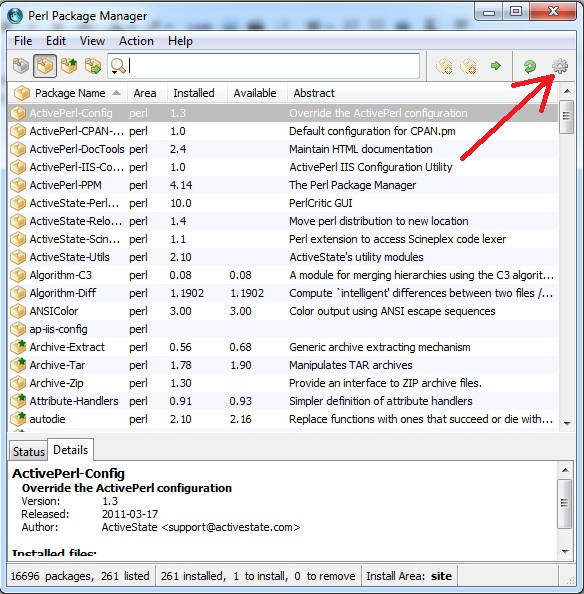
Step1: open Perl Package Manager
Step2: click on preferences (the gear thingy) on the upper right corner
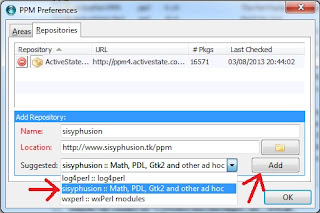
Name: sosyphusion
Location: http://www.sisyphusion.tk/ppm
Step4: follow the arrows from 1 to 5 in the diagram below
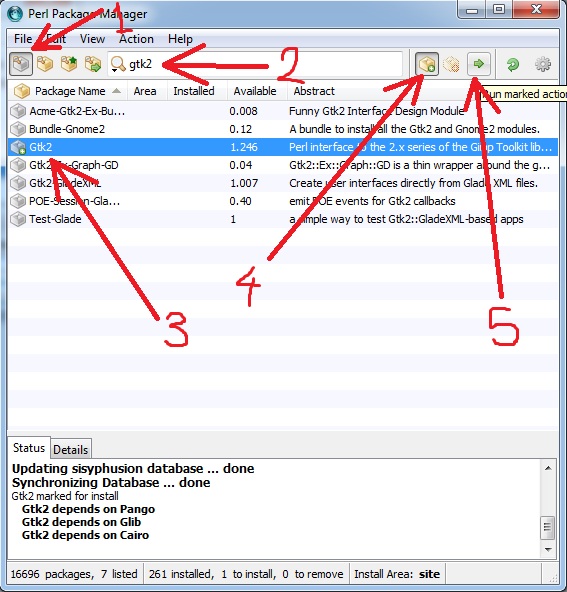
Step5: Gtk2 is now installed!!
Thanks to one of our Commentor, (AnonymousJuly 3, 2013 at 5:53 AM) suggested you do the following if your installation fails with this message "The package Gtk2 has already installed a file that package Pango wants to install."
Anyway, in order to successfully install it under (at least) ActiveState Perl 5.16.3 you need to :
Step 1 .. Step 3 : same as shown above
Step 4 : exit PPM GUI
Step 5 : on command line (cmd.exe) enter :
ppm install Gtk2 --force
Step 6 : enjoy !