Showing posts with label transformation. Show all posts
Showing posts with label transformation. Show all posts
Wednesday, February 18, 2015
Kettle Pass parameters from job to transformation in PDI Retrieve data from table by passing table name as parameter
This post will talk about basic understanding of parameters concept in PDI.
Software Setup :
PDI 5.1.0 CE
PostgreSQL
Concept : Retrieve data from table by passing table name as parameter.
You will learn below things
1) Table input step & database connections
2) Creating parameter(s) in Transformation(s) & Job(s)
3) Passing parameter(s) from job to transformation.
Lets say in foodmart database you have below tables 1) region 2) product 3) customer and etc.
Every time when you pass different table name as parameter you should able to fetch the data coming from the passed table.
1) Table input step & database connections
2) Creating parameter(s) in Transformation(s) & Job(s)
1) Create a new transformation & drag and drop "Table Input" step from Design Pane.

2) Double Click on "Table input" step & Click on New tab to give database connections as shown in below image

3) Define the parameter in transformation ( in this example the table name should go as parameter).
Image A : Right Click on the empty space to get the transformation settings.
Image B : Database Connection Details
Parameter Name is : tableName


4) Come back to the properties of "Table input" & write select statement to retrieve the data.
Eg : SELECT * FROM product LIMIT 100
In above example "product" is the table name that you have to replace with the parameter.
i.e., SELECT * FROM ${tableName} LIMIT 100
Once you write the query, come down check "Replace variables in script"

5) Take a "Dummy" step and connect it to "Table input step" . Save the transformation & run it on "Dummy Step"( Right click dummy step and click on "Preview".
OUTPUT : Test 1 : With "region" table

OUTPUT : Result 1

OUTPUT : Test 2 : With "product" table
* Right click Dummy step then click on Preview
* Click on Configure & then in parameters tab give "product" for tableName value parameter.
OUTPUT : Result 2

3) Passing parameter(s) from job to transformation
* Crtl+Alt to create a new job
* From the "General" node of Design tab ( Appears left side) drag and drop "Transoformation step".
* Drag and drop "START" step and connect these two as shown in below image.

* Double click on "Transformation" step to set the properties & parameter information.
* Browse for the transformation file and then move to parameters tab
* Click on "Get Parameters" then you can find parameter get apper under Parameter tab.
* Right click on empty canvas of job to get its settings & move to Parameters tab and give parameter name as "tableName" and provide default value.
Save the job and run it.
IMP NOTE :
1) Parameter names in job & transformation should match.
2) You can create n number of parameters in job but can pass as many you wish.
3) In job design you should take "START" step to tell the job to start execution from there.
If you ignore you will get below error ( which took me awhile to solve it for the very first time).
Start of job execution
:A serious error occurred during job execution:
Couldnt find starting point in this job.
org.pentaho.di.core.exception.KettleJobException:
Couldnt find starting point in this job.
at org.pentaho.di.job.Job.execute(Job.java:516)
at org.pentaho.di.job.Job.run(Job.java:422)
Spoon - Job has ended.
References :
1) http://wiki.pentaho.com/display/EAI/Named+Parameters
2) http://diethardsteiner.blogspot.in/2013/07/pentaho-kettle-parameters-and-variables.html
3) http://wiki.pentaho.com/display/EAI/Substituting+variable+references+in+Job+Parameter+values
Hope this helps some one like me for the first time who is looking for parameters(named) concept :-)
Cheers :-)
:-) Happy New Year - Welcome - 2015 :-)
Software Setup :
PDI 5.1.0 CE
PostgreSQL
Concept : Retrieve data from table by passing table name as parameter.
You will learn below things
1) Table input step & database connections
2) Creating parameter(s) in Transformation(s) & Job(s)
3) Passing parameter(s) from job to transformation.
Lets say in foodmart database you have below tables 1) region 2) product 3) customer and etc.
Every time when you pass different table name as parameter you should able to fetch the data coming from the passed table.
1) Table input step & database connections
2) Creating parameter(s) in Transformation(s) & Job(s)
1) Create a new transformation & drag and drop "Table Input" step from Design Pane.
2) Double Click on "Table input" step & Click on New tab to give database connections as shown in below image
3) Define the parameter in transformation ( in this example the table name should go as parameter).
Image A : Right Click on the empty space to get the transformation settings.
Image B : Database Connection Details
Parameter Name is : tableName
4) Come back to the properties of "Table input" & write select statement to retrieve the data.
Eg : SELECT * FROM product LIMIT 100
In above example "product" is the table name that you have to replace with the parameter.
i.e., SELECT * FROM ${tableName} LIMIT 100
Once you write the query, come down check "Replace variables in script"
5) Take a "Dummy" step and connect it to "Table input step" . Save the transformation & run it on "Dummy Step"( Right click dummy step and click on "Preview".
OUTPUT : Test 1 : With "region" table
OUTPUT : Result 1
OUTPUT : Test 2 : With "product" table
* Right click Dummy step then click on Preview
* Click on Configure & then in parameters tab give "product" for tableName value parameter.
OUTPUT : Result 2
3) Passing parameter(s) from job to transformation
* Crtl+Alt to create a new job
* From the "General" node of Design tab ( Appears left side) drag and drop "Transoformation step".
* Drag and drop "START" step and connect these two as shown in below image.
* Double click on "Transformation" step to set the properties & parameter information.
* Browse for the transformation file and then move to parameters tab
* Click on "Get Parameters" then you can find parameter get apper under Parameter tab.
* Right click on empty canvas of job to get its settings & move to Parameters tab and give parameter name as "tableName" and provide default value.
Save the job and run it.
IMP NOTE :
1) Parameter names in job & transformation should match.
2) You can create n number of parameters in job but can pass as many you wish.
3) In job design you should take "START" step to tell the job to start execution from there.
If you ignore you will get below error ( which took me awhile to solve it for the very first time).
Start of job execution
:A serious error occurred during job execution:
Couldnt find starting point in this job.
org.pentaho.di.core.exception.KettleJobException:
Couldnt find starting point in this job.
at org.pentaho.di.job.Job.execute(Job.java:516)
at org.pentaho.di.job.Job.run(Job.java:422)
Spoon - Job has ended.
References :
1) http://wiki.pentaho.com/display/EAI/Named+Parameters
2) http://diethardsteiner.blogspot.in/2013/07/pentaho-kettle-parameters-and-variables.html
3) http://wiki.pentaho.com/display/EAI/Substituting+variable+references+in+Job+Parameter+values
Hope this helps some one like me for the first time who is looking for parameters(named) concept :-)
Cheers :-)
:-) Happy New Year - Welcome - 2015 :-)

Tuesday, February 10, 2015
Kettle transformation as data source in Pentaho CDE OR Excel sheet as data source for pentaho CDE dashboard
Hello Guys..
Scenario :
If you receive excel sheet or csv file as data source then how to create dashboard charts or tables in pentaho CDE ?
Like jasper here we do not have any direct way to connect excel sheet as a data source. Here in Pentaho suite we need to make use of Kettle(PDI) to work out with Excel or CSV data sources.
Current post is an example of using Excel data source for Pentaho CDE dashboard.
This post is not using any parameters(Need to work out with parameters and update this blog post).
Aim of the Example:
Creating dashboard charts using Excel Datasheet
Environment :
1) PDI(Kettlle)- 4.4 stable
2) Pentaho BA server - 4.8 stable
3) Excel data source(with .xls extension)
4) Pentaho C-Tools(13.09 version)
5) Web browser(Mozilla is preferable)
Example :
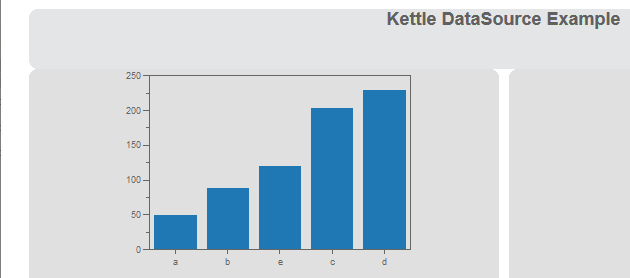
Displaying bar chart group by summation of ranks in ascending order. (just an example data sheet)
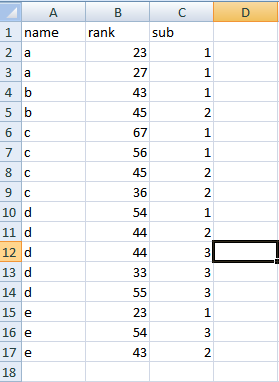
Display names on X-axis and summation of ranks on Y-axis on Pentaho CDE chart...
Data display should be grouped by name .
Data display should be grouped by name .
NOTE:
Save your kettle file in the folder where you also saving the CDE files.
i.e., Generally in 4.8 BA server
under pentaho-solutions/your project(dashboard) folder. Bz you need to pick the developed .ktr file from data sources section.
Steps:1 Working with PDI for Excel Data
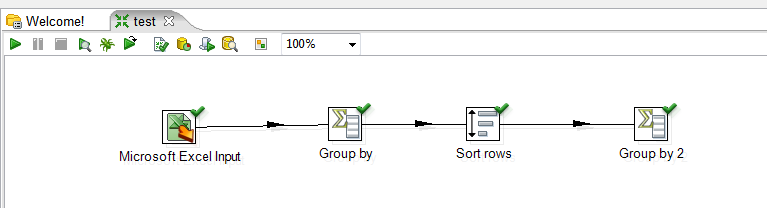
1) Drag an drop Excel Input step.
Design-> Input -> Microsoft Excel Input ->
2) Double click on Microsoft Excel Input step and Browse for your excel file and then Add.
3) Drag and drop "Group By" step from Design->Statistics
Double click on it and select Group field as name
In the aggregates select as below
Name Subject Type Value
name rank Sum
4) Connect the two Steps( i.e., connect "Microsoft Excel Input" and "Group By" with an Hop.
5) See the preview (Use Debug this transformation).
6) Sort the output that you got from step 5.
Drag and drop "Sort rows" step from Design ->Transform.
connect "Group By" step to "Sort rows" step using a hop.
7) After sorting add another step say "Group By 2" to your transformation and now see the preview of the transformation.
Kettle Design Image:
Down load source code of this example here
References :
1) Drag an drop Excel Input step.
Design-> Input -> Microsoft Excel Input ->
2) Double click on Microsoft Excel Input step and Browse for your excel file and then Add.
3) Drag and drop "Group By" step from Design->Statistics
Double click on it and select Group field as name
In the aggregates select as below
Name Subject Type Value
name rank Sum
4) Connect the two Steps( i.e., connect "Microsoft Excel Input" and "Group By" with an Hop.
5) See the preview (Use Debug this transformation).
6) Sort the output that you got from step 5.
Drag and drop "Sort rows" step from Design ->Transform.
connect "Group By" step to "Sort rows" step using a hop.
7) After sorting add another step say "Group By 2" to your transformation and now see the preview of the transformation.
Kettle Design Image:
Step 2: Kettle Transformation as Data source in pentaho CDE
1) Layout section :
Design and develop your dashboard as per your requirement.
2) Components section:
Take a bar chart and give place holder for that using html object
3) Data sources section:
i) Select "KETTLE Queries" and then click on "kettle over kettle TransFromFile"
ii) Give name and locate your .ktr file and then write the step name from where you are getting output in your transformation.. In this example step name is : Group by 2 (note that white spaces are there in name)
iii) Give the name of this data source in component section for your chart data source.
Thats it. you have done with working with Kettle as data source for pentaho CDE dashboarding.
Sample output of this example
Down load source code of this example here
References :
1) http://codeissue.com/articles/a04f273a99579d2/
Pedros blog post:
2) http://pedroalves-bi.blogspot.in/2011/07/elasticsearch-kettle-and-ctools.html
Pedros blog post:
2) http://pedroalves-bi.blogspot.in/2011/07/elasticsearch-kettle-and-ctools.html
Subscribe to:
Posts (Atom)