Showing posts with label as. Show all posts
Showing posts with label as. Show all posts
Wednesday, February 18, 2015
Kettle Pass parameters from job to transformation in PDI Retrieve data from table by passing table name as parameter
This post will talk about basic understanding of parameters concept in PDI.
Software Setup :
PDI 5.1.0 CE
PostgreSQL
Concept : Retrieve data from table by passing table name as parameter.
You will learn below things
1) Table input step & database connections
2) Creating parameter(s) in Transformation(s) & Job(s)
3) Passing parameter(s) from job to transformation.
Lets say in foodmart database you have below tables 1) region 2) product 3) customer and etc.
Every time when you pass different table name as parameter you should able to fetch the data coming from the passed table.
1) Table input step & database connections
2) Creating parameter(s) in Transformation(s) & Job(s)
1) Create a new transformation & drag and drop "Table Input" step from Design Pane.

2) Double Click on "Table input" step & Click on New tab to give database connections as shown in below image

3) Define the parameter in transformation ( in this example the table name should go as parameter).
Image A : Right Click on the empty space to get the transformation settings.
Image B : Database Connection Details
Parameter Name is : tableName


4) Come back to the properties of "Table input" & write select statement to retrieve the data.
Eg : SELECT * FROM product LIMIT 100
In above example "product" is the table name that you have to replace with the parameter.
i.e., SELECT * FROM ${tableName} LIMIT 100
Once you write the query, come down check "Replace variables in script"

5) Take a "Dummy" step and connect it to "Table input step" . Save the transformation & run it on "Dummy Step"( Right click dummy step and click on "Preview".
OUTPUT : Test 1 : With "region" table

OUTPUT : Result 1

OUTPUT : Test 2 : With "product" table
* Right click Dummy step then click on Preview
* Click on Configure & then in parameters tab give "product" for tableName value parameter.
OUTPUT : Result 2

3) Passing parameter(s) from job to transformation
* Crtl+Alt to create a new job
* From the "General" node of Design tab ( Appears left side) drag and drop "Transoformation step".
* Drag and drop "START" step and connect these two as shown in below image.

* Double click on "Transformation" step to set the properties & parameter information.
* Browse for the transformation file and then move to parameters tab
* Click on "Get Parameters" then you can find parameter get apper under Parameter tab.
* Right click on empty canvas of job to get its settings & move to Parameters tab and give parameter name as "tableName" and provide default value.
Save the job and run it.
IMP NOTE :
1) Parameter names in job & transformation should match.
2) You can create n number of parameters in job but can pass as many you wish.
3) In job design you should take "START" step to tell the job to start execution from there.
If you ignore you will get below error ( which took me awhile to solve it for the very first time).
Start of job execution
:A serious error occurred during job execution:
Couldnt find starting point in this job.
org.pentaho.di.core.exception.KettleJobException:
Couldnt find starting point in this job.
at org.pentaho.di.job.Job.execute(Job.java:516)
at org.pentaho.di.job.Job.run(Job.java:422)
Spoon - Job has ended.
References :
1) http://wiki.pentaho.com/display/EAI/Named+Parameters
2) http://diethardsteiner.blogspot.in/2013/07/pentaho-kettle-parameters-and-variables.html
3) http://wiki.pentaho.com/display/EAI/Substituting+variable+references+in+Job+Parameter+values
Hope this helps some one like me for the first time who is looking for parameters(named) concept :-)
Cheers :-)
:-) Happy New Year - Welcome - 2015 :-)
Software Setup :
PDI 5.1.0 CE
PostgreSQL
Concept : Retrieve data from table by passing table name as parameter.
You will learn below things
1) Table input step & database connections
2) Creating parameter(s) in Transformation(s) & Job(s)
3) Passing parameter(s) from job to transformation.
Lets say in foodmart database you have below tables 1) region 2) product 3) customer and etc.
Every time when you pass different table name as parameter you should able to fetch the data coming from the passed table.
1) Table input step & database connections
2) Creating parameter(s) in Transformation(s) & Job(s)
1) Create a new transformation & drag and drop "Table Input" step from Design Pane.
2) Double Click on "Table input" step & Click on New tab to give database connections as shown in below image
3) Define the parameter in transformation ( in this example the table name should go as parameter).
Image A : Right Click on the empty space to get the transformation settings.
Image B : Database Connection Details
Parameter Name is : tableName
4) Come back to the properties of "Table input" & write select statement to retrieve the data.
Eg : SELECT * FROM product LIMIT 100
In above example "product" is the table name that you have to replace with the parameter.
i.e., SELECT * FROM ${tableName} LIMIT 100
Once you write the query, come down check "Replace variables in script"
5) Take a "Dummy" step and connect it to "Table input step" . Save the transformation & run it on "Dummy Step"( Right click dummy step and click on "Preview".
OUTPUT : Test 1 : With "region" table
OUTPUT : Result 1
OUTPUT : Test 2 : With "product" table
* Right click Dummy step then click on Preview
* Click on Configure & then in parameters tab give "product" for tableName value parameter.
OUTPUT : Result 2
3) Passing parameter(s) from job to transformation
* Crtl+Alt to create a new job
* From the "General" node of Design tab ( Appears left side) drag and drop "Transoformation step".
* Drag and drop "START" step and connect these two as shown in below image.
* Double click on "Transformation" step to set the properties & parameter information.
* Browse for the transformation file and then move to parameters tab
* Click on "Get Parameters" then you can find parameter get apper under Parameter tab.
* Right click on empty canvas of job to get its settings & move to Parameters tab and give parameter name as "tableName" and provide default value.
Save the job and run it.
IMP NOTE :
1) Parameter names in job & transformation should match.
2) You can create n number of parameters in job but can pass as many you wish.
3) In job design you should take "START" step to tell the job to start execution from there.
If you ignore you will get below error ( which took me awhile to solve it for the very first time).
Start of job execution
:A serious error occurred during job execution:
Couldnt find starting point in this job.
org.pentaho.di.core.exception.KettleJobException:
Couldnt find starting point in this job.
at org.pentaho.di.job.Job.execute(Job.java:516)
at org.pentaho.di.job.Job.run(Job.java:422)
Spoon - Job has ended.
References :
1) http://wiki.pentaho.com/display/EAI/Named+Parameters
2) http://diethardsteiner.blogspot.in/2013/07/pentaho-kettle-parameters-and-variables.html
3) http://wiki.pentaho.com/display/EAI/Substituting+variable+references+in+Job+Parameter+values
Hope this helps some one like me for the first time who is looking for parameters(named) concept :-)
Cheers :-)
:-) Happy New Year - Welcome - 2015 :-)

Sunday, February 15, 2015
USING YOUR BLUETOOTH ENABLED PHONE AS A MODEM UBUNTU 10 4 LTS
 |
| Using your phone as a modem via Bluetooth |
Author: Kibui Kenneth Maina Wed Sep 1, 4:43PM
CLICK ON AN IMAGE TO VIEW THE FULL SIZE IF ITS TOO BURY
1. Go to http://ubuntu-tweak.com/ and install Ubuntu tweak. (It makes it easy for novices and experienced users to configure and manage Ubuntu).
2. After the installation completes go to Applications>System tools> Ubuntu tweak
 |
| Installed Ubuntu tweak |
4. Check Blueman if it is not already checked and click apply. (install to completion)
5. Turn on your phone and computers Bluetooth. (I am Using the Motorolla l6i for this demo).
 |
| Motorola L6i |
6. Go to System>Preferences>Bluetooth Manager
7. Click on the search button on the Bluetooth manager. All available Bluetooth devices will be detected and displayed.
 |
| Installed Bluetooth manager |
8. Click once on your phone on the Bluetooth manager to select it then go to setup on the top bar of the Bluetooth manager.
 |
| A Paring session |
9. Select custom passkey and key in the code of your choice or use mine 0000 then click forward.
 |
| Putting a passkey |
10. Your phone will ask you if you want to pair, select Yes, it will then ask you for a passkey, enter the passkey that you entered into the computer.
11. You will then be asked if you want to connect to dial up networking click forward, select the network that you are on and click on forward.
 |
| Setting up your broadband connection |
12. You will be informed that your device has been added and connected successfully click close.
 |
| Finalizing the set up process |
13.Your Blue tooth manager should appear as follows.
 |
| Your phone connected as a modem |
14. Your panel will appear as follows (no wireless or wired network, one lighting Bluetooth icon one normal Bluetooth icon.
 |
| Your panel before connecting to mobile broadband |
15. Click on your network icon. Go to Mobile broadband and select your network
 |
| Connecting to mobile broadband Internet on your computer |
16. Your connection will appear as shown, with phone network bars appearing where your network connection is supposed to be.
 |
| Your connected mobile broadband ready to go |
|
| A mobile broadband connection on your computer |
17. Open your browser and browse away.... (Make sure you have enough credit), for Safaricom users you can convert your airtime to bundles to save on credit by dialing;
- *100#
- select option 1
- select option 2
- select option 2
- Select the appropriate bundles
Thursday, February 12, 2015
Bar chart with Target lines in pentaho CDE making bars as lines using java script in pentaho CDE
Hi guys,
This post teach you how to make bars as lines in pentaho CDE.
Source for this post is : http://jsfiddle.net/duarteleao/7maGD/
and http://type-exit.org/adventures-with-open-source-bi/2011/06/creating-dashboards-with-cde/
Scenario : Some end users wants visualization of grouped bars as lines where one of the bar is as bar and remaining bars as targeted lines on the same bar.
Properties have to give:
Plot2 : True
Find the remaining properties in below image: version of CDE is : 13.06 but will work in higher versions also.
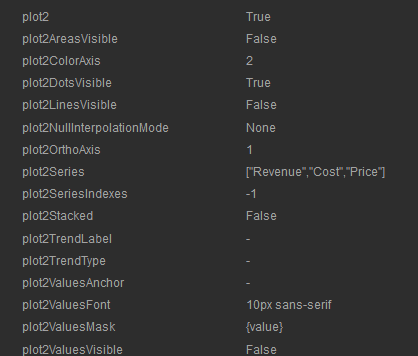
NOTE: Find the image for how to give the above code as properties in Extension points of chart component.
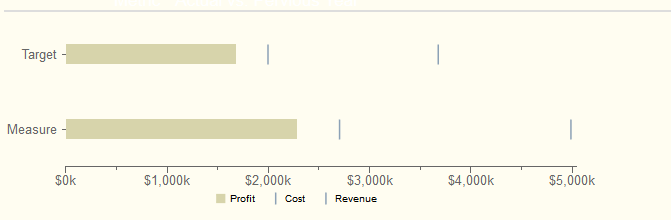
Sample output of the chart on dashboard after giving the above properties.
Sadakar
BI developer
("Learning never exhausts the mind")
This post teach you how to make bars as lines in pentaho CDE.
Source for this post is : http://jsfiddle.net/duarteleao/7maGD/
and http://type-exit.org/adventures-with-open-source-bi/2011/06/creating-dashboards-with-cde/
Scenario : Some end users wants visualization of grouped bars as lines where one of the bar is as bar and remaining bars as targeted lines on the same bar.
Properties have to give:
Plot2 : True
Find the remaining properties in below image: version of CDE is : 13.06 but will work in higher versions also.
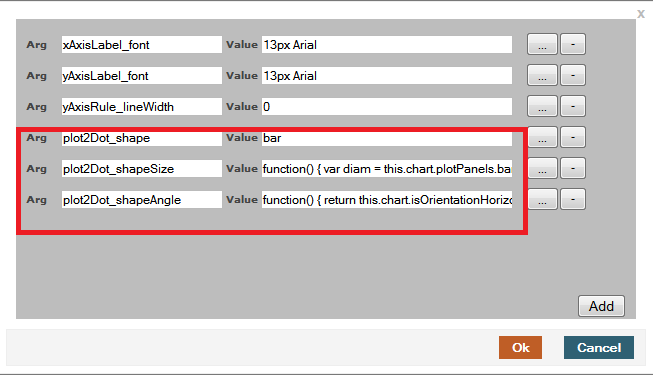
In "Extension points" for the chart component you need to give 3 properties from the first link.
They are
extensionPoints: {
plot2Dot_shape: bar,
plot2Dot_shapeSize: function() {
var diam = this.chart.plotPanels.bar.barWidth ||
this.chart.options.barSizeMax;
return this.finished(diam);
},
plot2Dot_shapeAngle: function() {
return this.chart.isOrientationHorizontal() ? 0 : -Math.PI/2;
}
plot2Dot_shape: bar,
plot2Dot_shapeSize: function() {
var diam = this.chart.plotPanels.bar.barWidth ||
this.chart.options.barSizeMax;
return this.finished(diam);
},
plot2Dot_shapeAngle: function() {
return this.chart.isOrientationHorizontal() ? 0 : -Math.PI/2;
}
NOTE: Find the image for how to give the above code as properties in Extension points of chart component.
Sample output of the chart on dashboard after giving the above properties.
Sadakar
BI developer
("Learning never exhausts the mind")
6 FAQs on Graphic Designing as a Career

Who doesn’t want to ‘make it big’ in life and rise to the zenith by dint of his enviable career? Of course, there’s no shortcut to success. However, a few smart career moves can lead you to a greener pasture. For example, if you have a creative mind, and believe in teamwork and wish to pursue an ‘offbeat’ career that can offer you a secured future, then you might consider giving graphic designing a try.
Also Read: The Top 10 Websites to create free Logo for your Blog
Also Read: How to Choose the Right Theme for Your Blog?
Here are the FAQs on graphic designing as a vocation:
Q#1: What does a graphic designer do?
By and large, graphic designers are employed to develop designs foe product illustrations, marketing collateral, websites that use computer software and brand identities. They are expected to combine their technical skills with their creativity, and create designs that communicate with the targeted audiences. A graphic designer might work independently, or get placed at different companies.
Q#2: Do you need to pursue any vocational course to become a graphic designer?
To become an expert graphic designer, you need to familiarize yourself with software applications like Adobe Photoshop, Adobe InDesign, Adobe Illustrator, Adobe PageMaker, Corel Draw and the like. A number of agencies offer courses, which are customized to help aspiring graphic designers to proceed in their career. However, it doesn’t take much time to complete the courses, and the course fee is generally kept minimal. After completing the course from a reputed institution, you can earn a living for yourself.
Q#3: Which company to choose?
Since there has been a mushroom growth of institutions offering web designing courses, you might wonder about the ‘right’ institution to join. Ideally, look for an institution which:
- Has been providing web designing course for long.
- Trains you to overcome any professional hazards in the long run.
- Provide in depth knowledge in the skills-in-demand
- Employs experts in the field to train the students.
- Helps in placement after the course is over.

Q#4: Will this profession suit you?
It takes more than technical expertise and a creative bend of mind to become a graphic designer. You need to acquire some soft skills as well. Such as:
- You need to be a stickler for perfection.
- You need to be diligent and ever eager to learn new things.
- You need to be open to suggestions and criticisms.
- You should be able to meet the deadline and deliver the work as and when needed.
Q#5: How to gain experience in this field?
It’s imperative to gain experience to build your confidence and hone your designing skills. This will help establish your reputation as an expert over time. To acquire experience, consider:
- Volunteer your services to any non-profit organization or a local school.
- Helping a family friend/relative by designing their wedding invitation cards.
- Designing your own greeting cards.
- Selling your creations in the local stores.
Also Read: Top 5 Tools to Create Interesting Infographic
Also Read: Top IT Certification Programs for Beginners in 2014
Q#6: How much salary to expect?
As a beginner, you might expect getting around 8500 INR per month. With some experience, you might be able to earn around 20,000 INR. The following factors might affect your salary, though:
- The projects you have undertaken
- Your job location
- The size of the company/design firm you work for.
- Your career responsibilities.
Q#6: Where can you find institutions that offer graphic designing courses?
You might find institutions offering graphic designing courses in almost all the major cities in India. There are a number of institutions are offering graphic design courses in Kolkata. And if you live in the outskirts, then you can also avail graphic designing courses in Rishra, Serampur- they are close to many locations.
Will you like to build your career as a graphic designer? If yes, then start looking for an institution offering graphic designing courses without much ado.
Author Bio:
Henry Carter is associated with a Web development company. He is specialised in Flash web design and database driven e-commerce. Recently he has started writing on Web development and web designing related content and likes to share his experience with his readers. Also he runs his own institute to offer graphic design courses, with an intention to provide more scope of employment.
Tuesday, February 10, 2015
Kettle transformation as data source in Pentaho CDE OR Excel sheet as data source for pentaho CDE dashboard
Hello Guys..
Scenario :
If you receive excel sheet or csv file as data source then how to create dashboard charts or tables in pentaho CDE ?
Like jasper here we do not have any direct way to connect excel sheet as a data source. Here in Pentaho suite we need to make use of Kettle(PDI) to work out with Excel or CSV data sources.
Current post is an example of using Excel data source for Pentaho CDE dashboard.
This post is not using any parameters(Need to work out with parameters and update this blog post).
Aim of the Example:
Creating dashboard charts using Excel Datasheet
Environment :
1) PDI(Kettlle)- 4.4 stable
2) Pentaho BA server - 4.8 stable
3) Excel data source(with .xls extension)
4) Pentaho C-Tools(13.09 version)
5) Web browser(Mozilla is preferable)
Example :
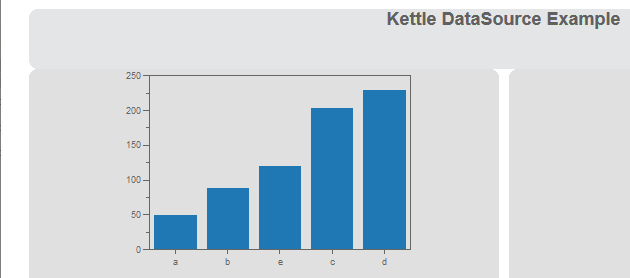
Displaying bar chart group by summation of ranks in ascending order. (just an example data sheet)
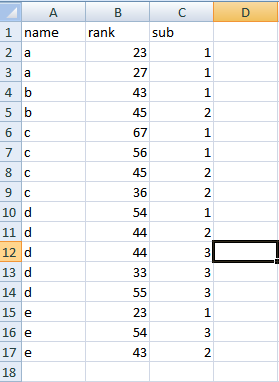
Display names on X-axis and summation of ranks on Y-axis on Pentaho CDE chart...
Data display should be grouped by name .
Data display should be grouped by name .
NOTE:
Save your kettle file in the folder where you also saving the CDE files.
i.e., Generally in 4.8 BA server
under pentaho-solutions/your project(dashboard) folder. Bz you need to pick the developed .ktr file from data sources section.
Steps:1 Working with PDI for Excel Data
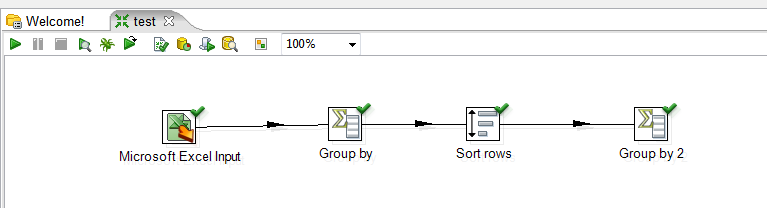
1) Drag an drop Excel Input step.
Design-> Input -> Microsoft Excel Input ->
2) Double click on Microsoft Excel Input step and Browse for your excel file and then Add.
3) Drag and drop "Group By" step from Design->Statistics
Double click on it and select Group field as name
In the aggregates select as below
Name Subject Type Value
name rank Sum
4) Connect the two Steps( i.e., connect "Microsoft Excel Input" and "Group By" with an Hop.
5) See the preview (Use Debug this transformation).
6) Sort the output that you got from step 5.
Drag and drop "Sort rows" step from Design ->Transform.
connect "Group By" step to "Sort rows" step using a hop.
7) After sorting add another step say "Group By 2" to your transformation and now see the preview of the transformation.
Kettle Design Image:
Down load source code of this example here
References :
1) Drag an drop Excel Input step.
Design-> Input -> Microsoft Excel Input ->
2) Double click on Microsoft Excel Input step and Browse for your excel file and then Add.
3) Drag and drop "Group By" step from Design->Statistics
Double click on it and select Group field as name
In the aggregates select as below
Name Subject Type Value
name rank Sum
4) Connect the two Steps( i.e., connect "Microsoft Excel Input" and "Group By" with an Hop.
5) See the preview (Use Debug this transformation).
6) Sort the output that you got from step 5.
Drag and drop "Sort rows" step from Design ->Transform.
connect "Group By" step to "Sort rows" step using a hop.
7) After sorting add another step say "Group By 2" to your transformation and now see the preview of the transformation.
Kettle Design Image:
Step 2: Kettle Transformation as Data source in pentaho CDE
1) Layout section :
Design and develop your dashboard as per your requirement.
2) Components section:
Take a bar chart and give place holder for that using html object
3) Data sources section:
i) Select "KETTLE Queries" and then click on "kettle over kettle TransFromFile"
ii) Give name and locate your .ktr file and then write the step name from where you are getting output in your transformation.. In this example step name is : Group by 2 (note that white spaces are there in name)
iii) Give the name of this data source in component section for your chart data source.
Thats it. you have done with working with Kettle as data source for pentaho CDE dashboarding.
Sample output of this example
Down load source code of this example here
References :
1) http://codeissue.com/articles/a04f273a99579d2/
Pedros blog post:
2) http://pedroalves-bi.blogspot.in/2011/07/elasticsearch-kettle-and-ctools.html
Pedros blog post:
2) http://pedroalves-bi.blogspot.in/2011/07/elasticsearch-kettle-and-ctools.html
C Program to print its own Source Code as Output
We can print the source code of a program as an output using quine. So first lets understand what quine is?
What is a Quine?
A quine is a computer program which takes no input and produces a copy of its own source code as its only output. The standard terms for these programs in the computability theory and computer science literature are "self-replicating programs", "self-reproducing programs", and "self-copying programs".
Also Read: List of Biggest and Popular Programming Contests
Also Read: How to Swap Two Numbers Without Using Temporary Variable or Arithmetic Operators?
Quines are named after the American mathematician and logician Willard Van Orman Quine (1908–2000). The interesting thing about quine is that we are not allowed to use open and then print file of the program.
An example of a quine in C language is given below which produces the source code as an output. It can be written in any other language like java, python, etc.
main(a){printf(a="main(a){printf(a=%c%s%c,34,a,34);}",34,a,34);}
If you will compile and run above code then it will show following output

This program can result in undefined behavior as we have used printf function without including its header file. Also, the return type declaration for main has been left off to reduce the length of the program. Two 34s are used to print double quotes around the string s.
Source: http://www.geeksforgeeks.org/quine-a-self-reproducing-program/and http://en.wikipedia.org/wiki/Quine_(computing)
Subscribe to:
Posts (Atom)