Showing posts with label name. Show all posts
Showing posts with label name. Show all posts
Wednesday, February 18, 2015
Kettle Pass parameters from job to transformation in PDI Retrieve data from table by passing table name as parameter
This post will talk about basic understanding of parameters concept in PDI.
Software Setup :
PDI 5.1.0 CE
PostgreSQL
Concept : Retrieve data from table by passing table name as parameter.
You will learn below things
1) Table input step & database connections
2) Creating parameter(s) in Transformation(s) & Job(s)
3) Passing parameter(s) from job to transformation.
Lets say in foodmart database you have below tables 1) region 2) product 3) customer and etc.
Every time when you pass different table name as parameter you should able to fetch the data coming from the passed table.
1) Table input step & database connections
2) Creating parameter(s) in Transformation(s) & Job(s)
1) Create a new transformation & drag and drop "Table Input" step from Design Pane.

2) Double Click on "Table input" step & Click on New tab to give database connections as shown in below image

3) Define the parameter in transformation ( in this example the table name should go as parameter).
Image A : Right Click on the empty space to get the transformation settings.
Image B : Database Connection Details
Parameter Name is : tableName


4) Come back to the properties of "Table input" & write select statement to retrieve the data.
Eg : SELECT * FROM product LIMIT 100
In above example "product" is the table name that you have to replace with the parameter.
i.e., SELECT * FROM ${tableName} LIMIT 100
Once you write the query, come down check "Replace variables in script"

5) Take a "Dummy" step and connect it to "Table input step" . Save the transformation & run it on "Dummy Step"( Right click dummy step and click on "Preview".
OUTPUT : Test 1 : With "region" table

OUTPUT : Result 1

OUTPUT : Test 2 : With "product" table
* Right click Dummy step then click on Preview
* Click on Configure & then in parameters tab give "product" for tableName value parameter.
OUTPUT : Result 2

3) Passing parameter(s) from job to transformation
* Crtl+Alt to create a new job
* From the "General" node of Design tab ( Appears left side) drag and drop "Transoformation step".
* Drag and drop "START" step and connect these two as shown in below image.

* Double click on "Transformation" step to set the properties & parameter information.
* Browse for the transformation file and then move to parameters tab
* Click on "Get Parameters" then you can find parameter get apper under Parameter tab.
* Right click on empty canvas of job to get its settings & move to Parameters tab and give parameter name as "tableName" and provide default value.
Save the job and run it.
IMP NOTE :
1) Parameter names in job & transformation should match.
2) You can create n number of parameters in job but can pass as many you wish.
3) In job design you should take "START" step to tell the job to start execution from there.
If you ignore you will get below error ( which took me awhile to solve it for the very first time).
Start of job execution
:A serious error occurred during job execution:
Couldnt find starting point in this job.
org.pentaho.di.core.exception.KettleJobException:
Couldnt find starting point in this job.
at org.pentaho.di.job.Job.execute(Job.java:516)
at org.pentaho.di.job.Job.run(Job.java:422)
Spoon - Job has ended.
References :
1) http://wiki.pentaho.com/display/EAI/Named+Parameters
2) http://diethardsteiner.blogspot.in/2013/07/pentaho-kettle-parameters-and-variables.html
3) http://wiki.pentaho.com/display/EAI/Substituting+variable+references+in+Job+Parameter+values
Hope this helps some one like me for the first time who is looking for parameters(named) concept :-)
Cheers :-)
:-) Happy New Year - Welcome - 2015 :-)
Software Setup :
PDI 5.1.0 CE
PostgreSQL
Concept : Retrieve data from table by passing table name as parameter.
You will learn below things
1) Table input step & database connections
2) Creating parameter(s) in Transformation(s) & Job(s)
3) Passing parameter(s) from job to transformation.
Lets say in foodmart database you have below tables 1) region 2) product 3) customer and etc.
Every time when you pass different table name as parameter you should able to fetch the data coming from the passed table.
1) Table input step & database connections
2) Creating parameter(s) in Transformation(s) & Job(s)
1) Create a new transformation & drag and drop "Table Input" step from Design Pane.
2) Double Click on "Table input" step & Click on New tab to give database connections as shown in below image
3) Define the parameter in transformation ( in this example the table name should go as parameter).
Image A : Right Click on the empty space to get the transformation settings.
Image B : Database Connection Details
Parameter Name is : tableName
4) Come back to the properties of "Table input" & write select statement to retrieve the data.
Eg : SELECT * FROM product LIMIT 100
In above example "product" is the table name that you have to replace with the parameter.
i.e., SELECT * FROM ${tableName} LIMIT 100
Once you write the query, come down check "Replace variables in script"
5) Take a "Dummy" step and connect it to "Table input step" . Save the transformation & run it on "Dummy Step"( Right click dummy step and click on "Preview".
OUTPUT : Test 1 : With "region" table
OUTPUT : Result 1
OUTPUT : Test 2 : With "product" table
* Right click Dummy step then click on Preview
* Click on Configure & then in parameters tab give "product" for tableName value parameter.
OUTPUT : Result 2
3) Passing parameter(s) from job to transformation
* Crtl+Alt to create a new job
* From the "General" node of Design tab ( Appears left side) drag and drop "Transoformation step".
* Drag and drop "START" step and connect these two as shown in below image.
* Double click on "Transformation" step to set the properties & parameter information.
* Browse for the transformation file and then move to parameters tab
* Click on "Get Parameters" then you can find parameter get apper under Parameter tab.
* Right click on empty canvas of job to get its settings & move to Parameters tab and give parameter name as "tableName" and provide default value.
Save the job and run it.
IMP NOTE :
1) Parameter names in job & transformation should match.
2) You can create n number of parameters in job but can pass as many you wish.
3) In job design you should take "START" step to tell the job to start execution from there.
If you ignore you will get below error ( which took me awhile to solve it for the very first time).
Start of job execution
:A serious error occurred during job execution:
Couldnt find starting point in this job.
org.pentaho.di.core.exception.KettleJobException:
Couldnt find starting point in this job.
at org.pentaho.di.job.Job.execute(Job.java:516)
at org.pentaho.di.job.Job.run(Job.java:422)
Spoon - Job has ended.
References :
1) http://wiki.pentaho.com/display/EAI/Named+Parameters
2) http://diethardsteiner.blogspot.in/2013/07/pentaho-kettle-parameters-and-variables.html
3) http://wiki.pentaho.com/display/EAI/Substituting+variable+references+in+Job+Parameter+values
Hope this helps some one like me for the first time who is looking for parameters(named) concept :-)
Cheers :-)
:-) Happy New Year - Welcome - 2015 :-)

Sunday, February 15, 2015
How to create MySQL Database and User name

What is MySQL:
MySQL is an open source database management software that helps users store, organize, and later retrieve data. It has a variety of options to grant specific users nuanced permissions within the tables and databases, May this tutorial gives you some kind of thinking about MySQL........!So now we lets start
How to Create MySQL Database and User:
Step 1: Login to your Web hosting account and open your control panel ( Cpanel ).
Step 2: Find Databases portion look like this: for example
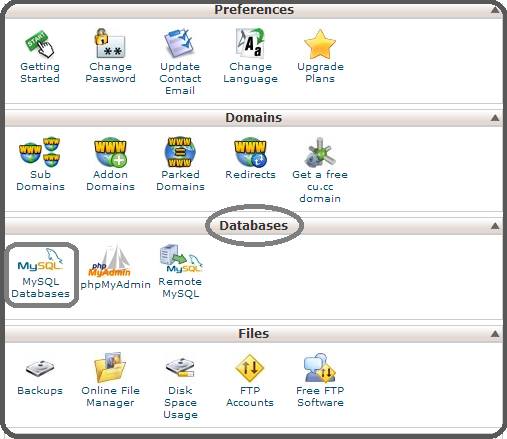
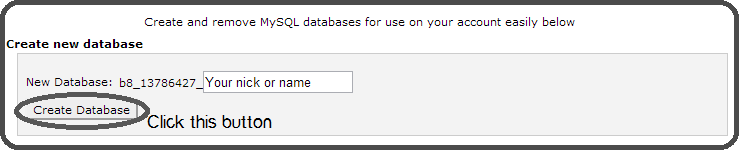
Step 3: Now click on MySQL Database and this screen will appeared look like given below image: Write your name or nick name as you want in New Database black box and click on Create Database.
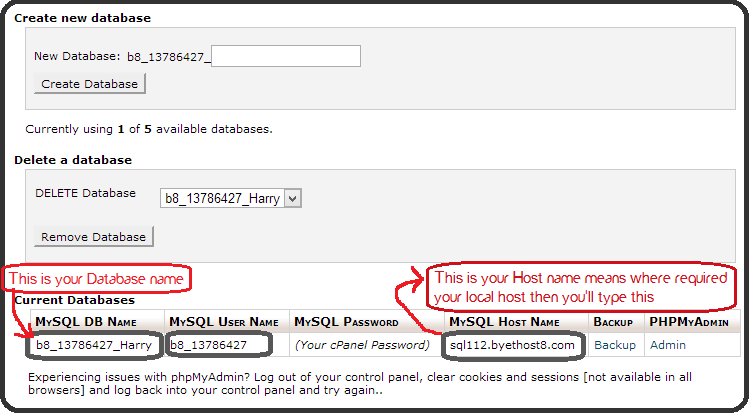
After click on Create Database button then you will see the given below screen. In the MySQL DB name means Your Database name and in the MySQL Host name means where you are required to enter your local host then you will type this ( your MySQL Host Name).
Congratulation you have done it.For more detail How to Install WordPress
Friday, February 13, 2015
C program which reads your name from the keyboard and outputs a list of ASCII codes which represent your name

#include<stdio.h>
#include<conio.h>
void main()
{
int i;
char name[50];
clrscr();
printf("Enter your name: ");
gets(name);
printf("
Character ASCII Code");
for(i=0;name[i]!=
Thursday, February 12, 2015
C program to input number of weeks day 1 7 and translate to its equivalent name of the day of the week
+and+translate+to+its+equivalent+name+of+the+day+of+the+week.JPG)
#include<stdio.h>
#include<conio.h>
void main()
{
int ch;
clrscr(); //to clear the screen
printf("Enter number of weeks day(1-7):");
scanf("%d",&ch);
switch(ch)
{
case 1: printf("
Sunday");
break;
case 2: printf("
Monday");
break;
case 3: printf("
Tuesday");
break;
case 4: printf("
Wednesday");
break;
case 5: printf("
Thursday");
break;
case 6: printf("
Friday");
break;
case 7: printf("
Saturday");
break;
}
getch(); //to stop the screen
}
Subscribe to:
Posts (Atom)